Submissions
The Submissions page displays the responses submitted through the form.
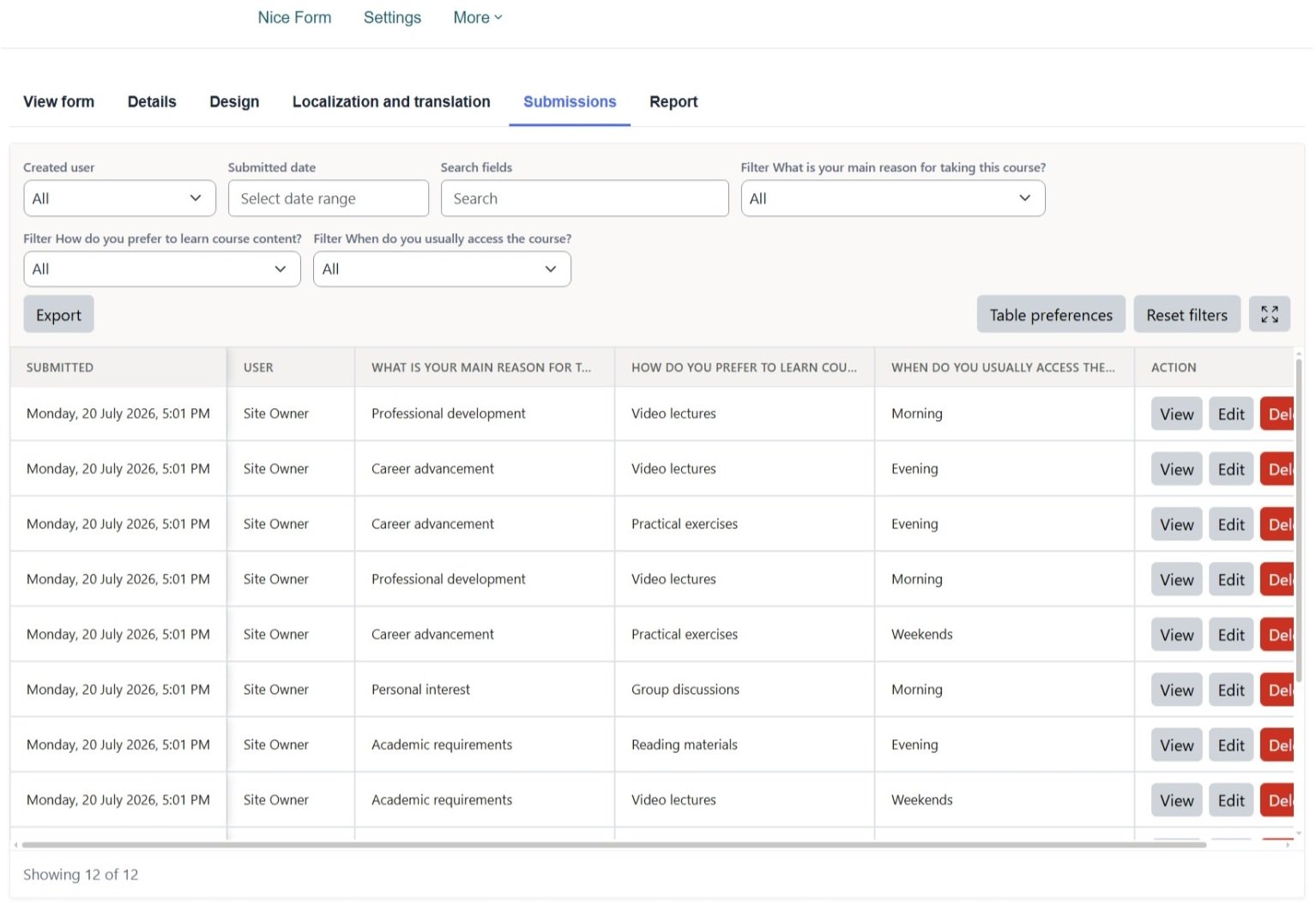
Each row represents one submission, while the table columns contain respondent information, submission details, and answers to form fields.
Submission Filters
Filters are generated based on the fields included in the form.
Filtering is supported for fields such as:
- Radio buttons
- Checkboxes
- Select fields
- Multi-select fields
- Rating fields
- Created by
- Submitted date
Search boxes can also be used to search values entered in fields such as:
- URL
- Text
- Textarea
Submitted Date Range
Submissions can be filtered by date using:
- From date
- To date
This allows users to display submissions received within a specific period.
Table Preferences
The Table Preferences option allows each user to customize the submissions table.
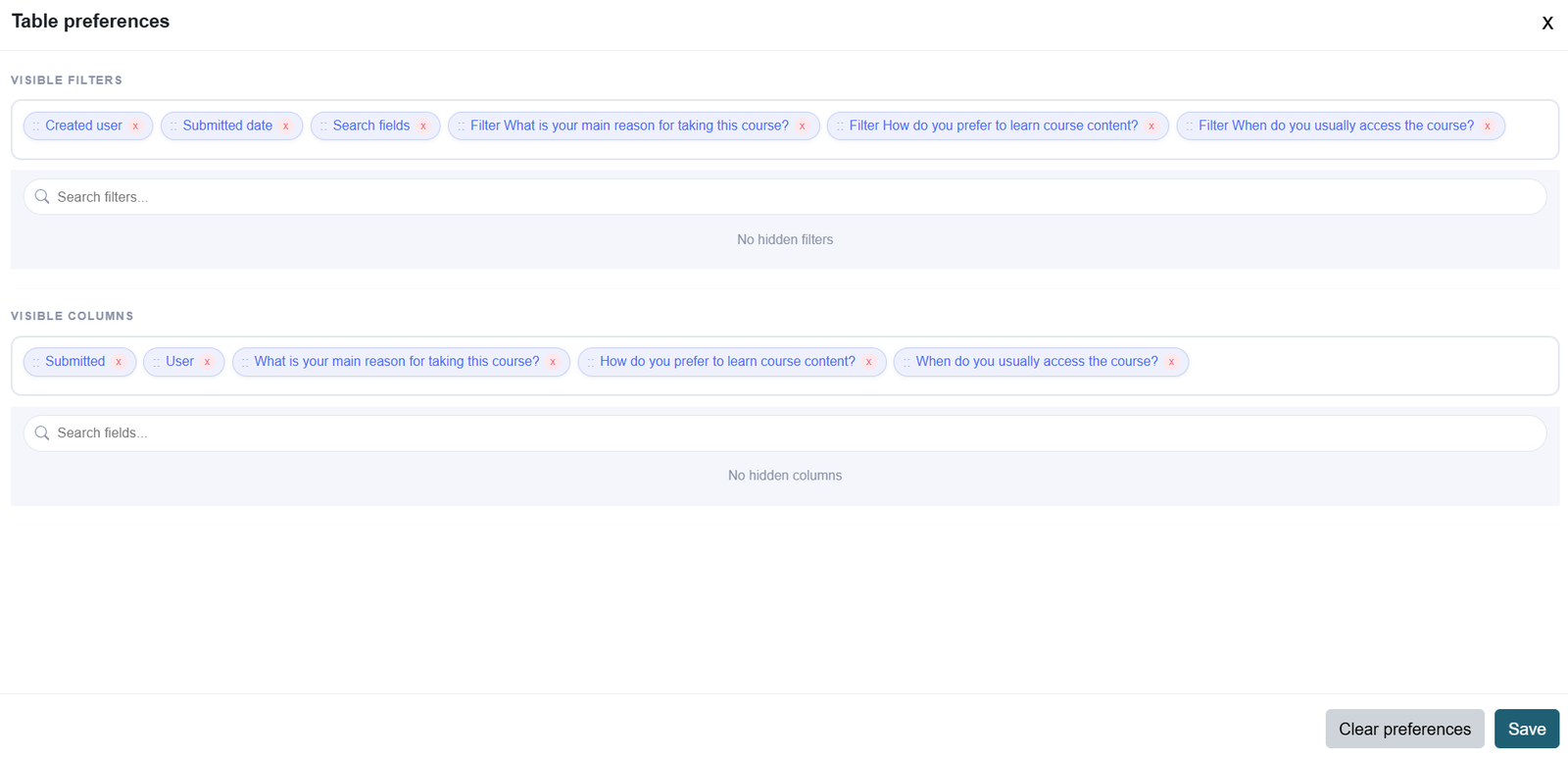
Users can:
- Reorder filters
- Hide unwanted filters
- Reorder table columns
- Hide unwanted columns
These preferences are saved separately for each user. Therefore, each user can maintain a personalized submissions-table layout without affecting other users.
Reset Filters
The Reset Filters button clears all active filters and search values.

After resetting the filters, the submissions table is refreshed and displays all available records.
Full-Screen Mode
The Full Screen button displays the submissions table in full-screen mode.

Export to Excel
The Export button opens a modal window containing the available export settings.

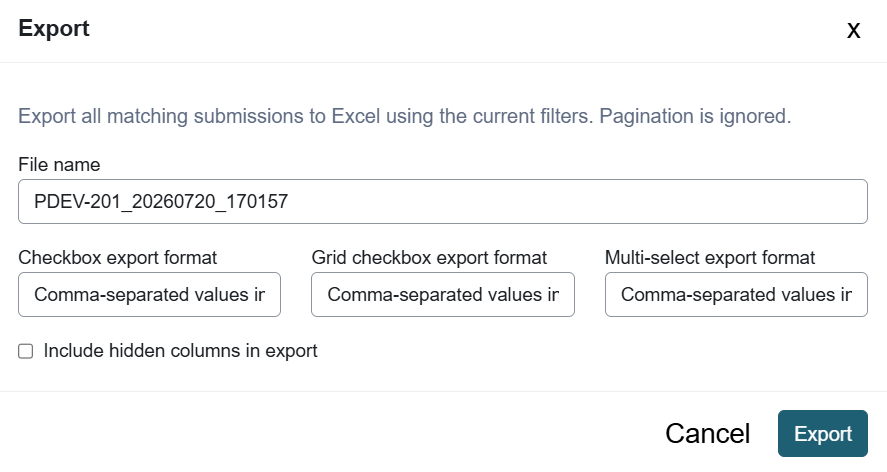
File Name
The user can enter a custom name for the exported file.
If no name is entered, the system uses the default export file name.
Checkbox Export Format
Checkbox responses can be exported in one of the following formats:
- Comma-separated values in a single column
- As an array
- Each selected value in a separate column
Grid Checkbox Export Format
Grid checkbox responses can be exported in one of the following formats:
- Comma-separated values in a single column
- As an array
- Each selected value in a separate column
Multi-select Export Format
Multi-select responses can be exported in one of the following formats:
- Comma-separated values in a single column
- As an array
- Each selected value in a separate column
Hidden Columns
By default, the export includes the currently visible table columns.
To export all available columns, including columns hidden through the table preferences, select:
Include hidden columns in export
The exported file will then contain both visible and hidden columns.
Was this page helpful?