Settings
The form settings are managed through the main Moodle activity settings page. In addition to Moodle’s standard activity settings, the plugin provides an Advanced Form Settings section.
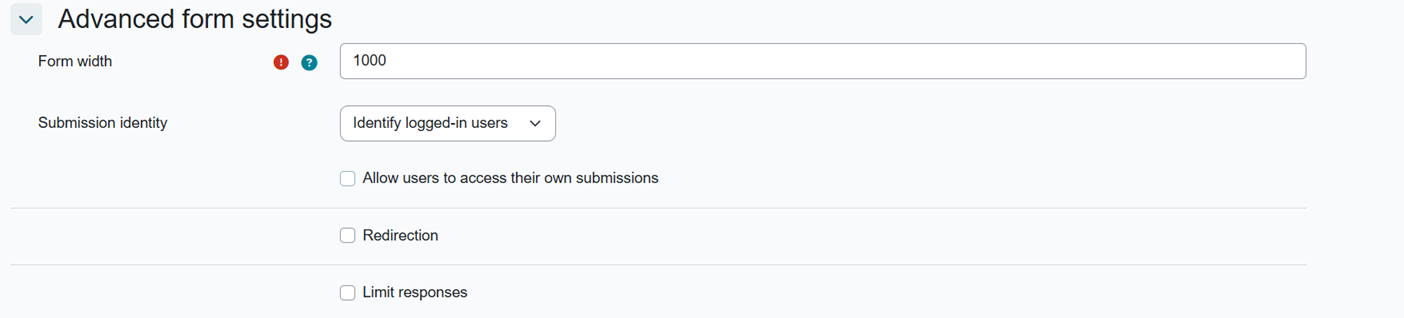
Form Width
The form width can be customized by entering a numeric value between 600 and 1200 pixels.
This allows the form designer to control how wide the form appears to users.
Submission Identity
This setting determines whether respondents are identified through their Moodle accounts.
Identify Logged-in Users
This is the default option.
When a logged-in user submits the form, the following information is collected automatically from their Moodle profile:
- First name
- Last name
- Email address
You can allow users to access their own submissions. After submitting the form, users can be permitted to view, edit, or delete their submissions. Please note that this feature works only when the submission identity is set to Identify logged-in users.
Anonymous Submissions
When anonymous submissions are enabled, the respondent’s Moodle account information is not attached to the submission.
This means that the form administrator will not be able to identify the respondent through Moodle.
Redirection After Submission
When redirection is enabled, users are automatically taken to a specified webpage after successfully submitting the form.
To use this option, enter the complete URL of the destination page.
Response Limits
The form administrator can change this by configuring:
- Maximum number of submissions
- Submission limit period
The available limit periods are:
- Hour
- Day
- Week
- Month
- Year
- Forever
For example, the form can be configured to allow a user to submit:
- Once per day
- Three times per month
- Five times in total
- An unlimited number of times
Was this page helpful?