Notifications
The Notifications page allows form administrators to configure automated Moodle and email notifications for:
- The LMS administrator
- The user who created the form
- The user who submitted the form
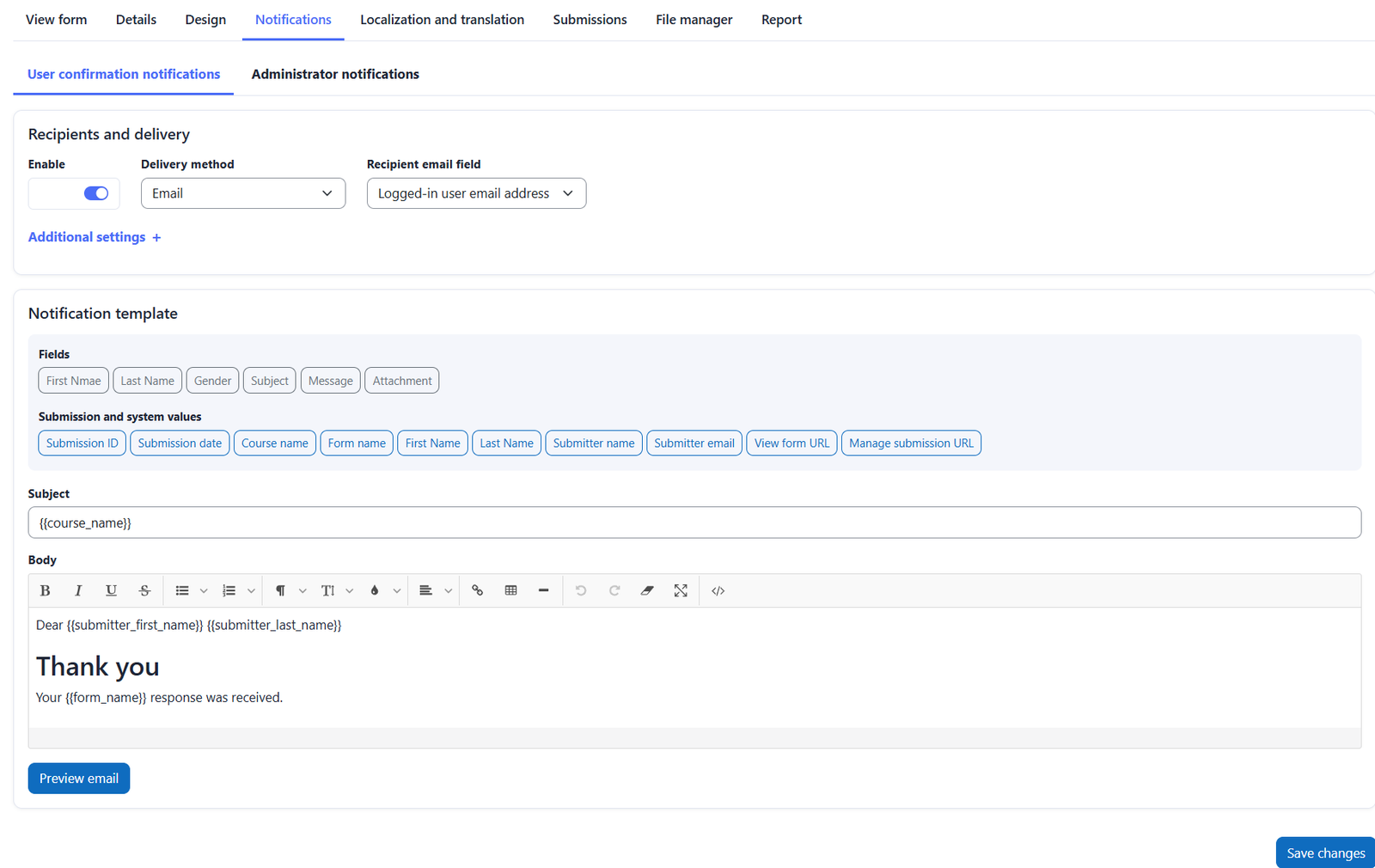
The page contains two main notification sections:
- User Confirmation Notification
- Administrator and Form Creator Notification
1. User Confirmation Notification
Enable Notification
Use the Enable Notification option to activate or deactivate the notification.
Delivery Method
The administrator can select one of the following delivery methods:
- Moodle notification
- Email notification
- Moodle notification and email
Recipient Email Field
Select the email address that should receive the confirmation notification:
- Logged-in user’s email address
- Any email-type field included in the form
CC recipients
Send a copy of the email to selected course users.
BCC recipients
Send a hidden copy of the email to selected course users.
2. Administrator notifications
Enable Notification
Use the Enable Notification option to activate or deactivate the notification.
Delivery Method
The administrator can select one of the following delivery methods:
- Moodle notification
- Email notification
- Moodle notification and email
Send notifications to
To allow send the notifcation to:
- The site administrator
- The user who created the form
- Selected administrators or instructors
- The site administrator and form creator
Selected administrators or instructors this to allow you to select more than adminstrators or instructors within the course.
Additional To recipients
You can send the notification to any user within the course
Notification Template
Each section includes a customizable template editor.
The administrator can modify the below for both email and moodle notification:
- Subject
- Body
A predefined template is provided by default, while allowing full customization.
Rich-Text Editor
The template editor supports common formatting options, including:
- Headings
- Bold, italic, and underlined text
- Bulleted and numbered lists
- Tables
- Text alignment
- Links
- Text and background colors
Form Fields
The Form Fields panel displays all fields currently included in the form.
Administrators can insert these fields into the body and subject so that submitted values appear automatically in the notification.
Submission and System Values
The following predefined system values should be available for insertion into the notification template:
- Submission ID
- Submission date and time
- Course name
- Form name
- Submitter name
- Submitter email address
- View form URL
- View submission URL
- Manage submission URL
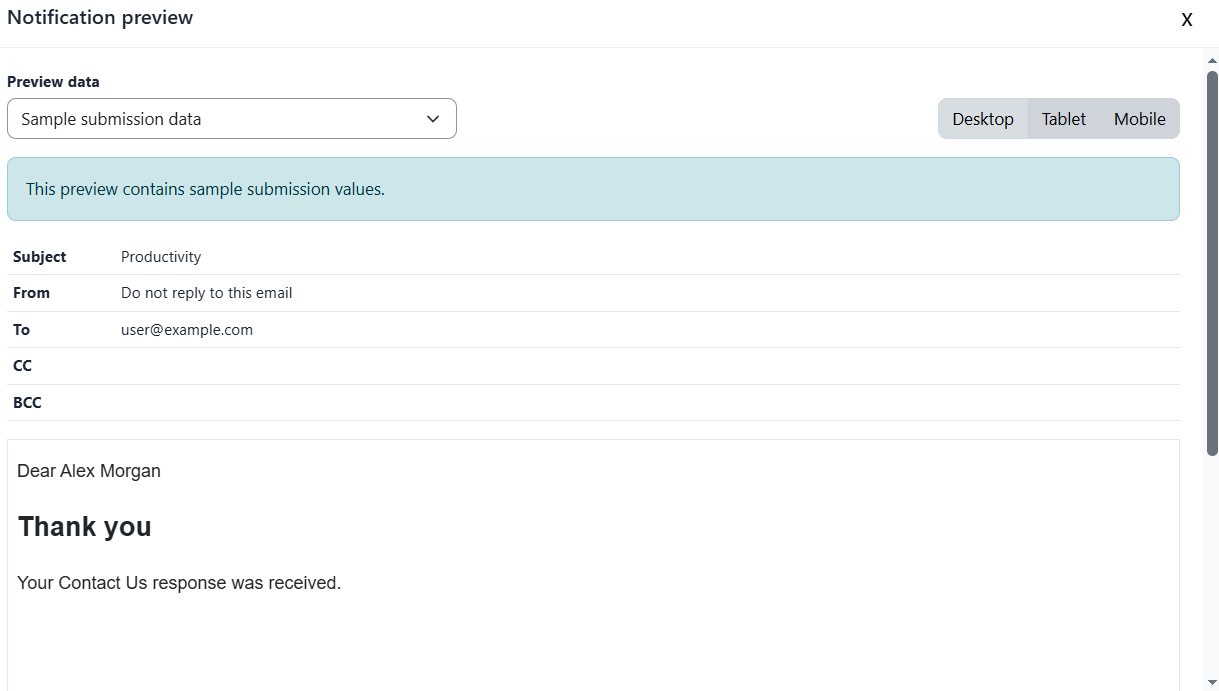
Email Preview Button
A Preview Email button allows the administrator to see how the final notification will appear before saving or sending it.
Send Test Email Button
A Send Test Email option allows the administrator to send a sample notification to any valid email address.

Was this page helpful?