Users
The Users section provides a site-level overview of all users registered on the site. It allows administrators to review user information, account status, course enrollments, and selected profile characteristics.
The section includes two main components: the Users table and User Charts.
Users Table
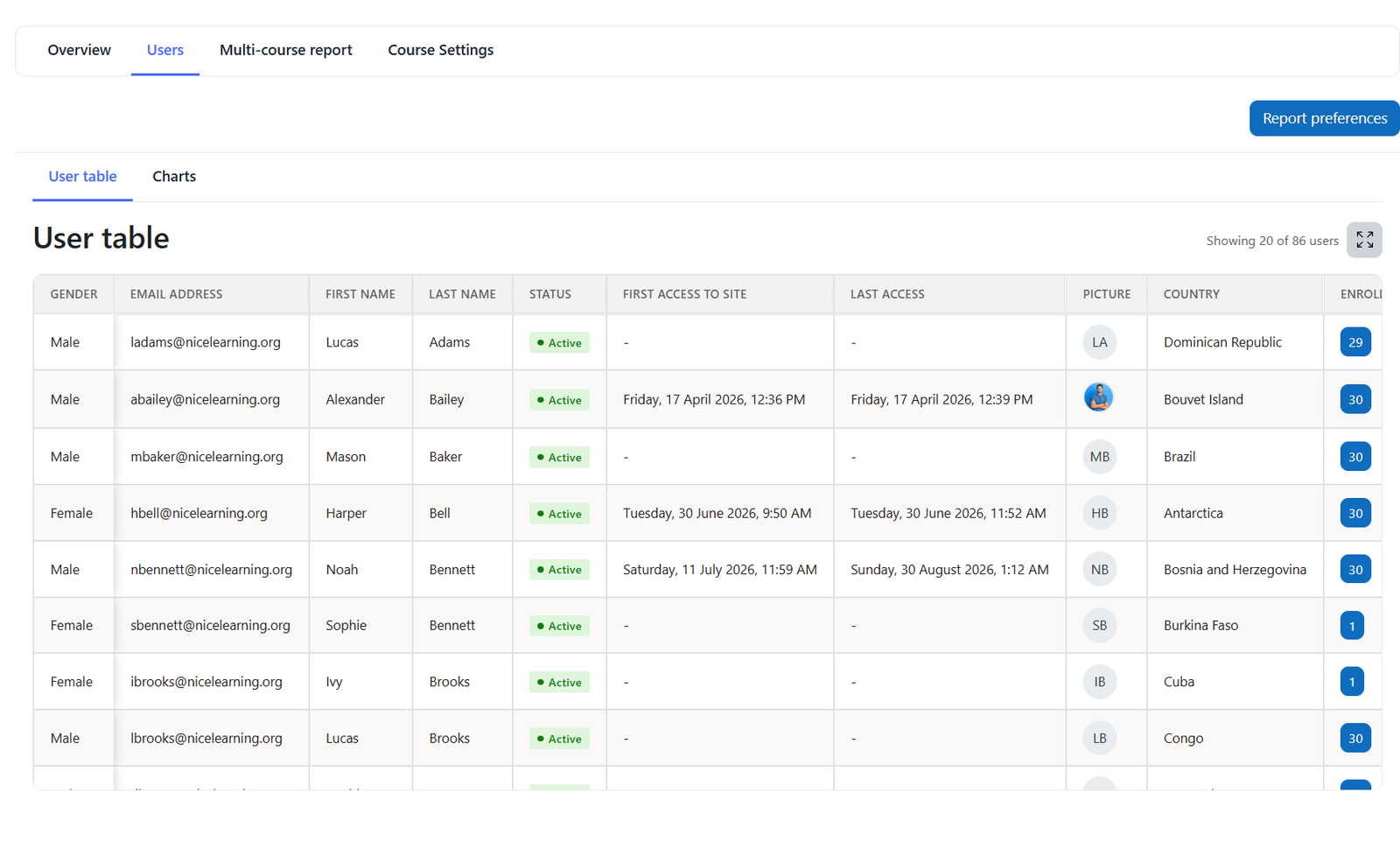
The Users table displays all users registered on the site together with their account information and course enrollment details.
Administrators can use this table to quickly review user profiles, identify active or suspended accounts, check site access information, and see which courses each user is enrolled in.
What You Can See
In this section, you can view:
- User profile information
- Site account status
- First and last access to the site
- Account creation date
- Courses in which the user is enrolled
- Enrollment status within each course
- Standard Moodle user fields
- Custom user profile fields
Enrolled Courses
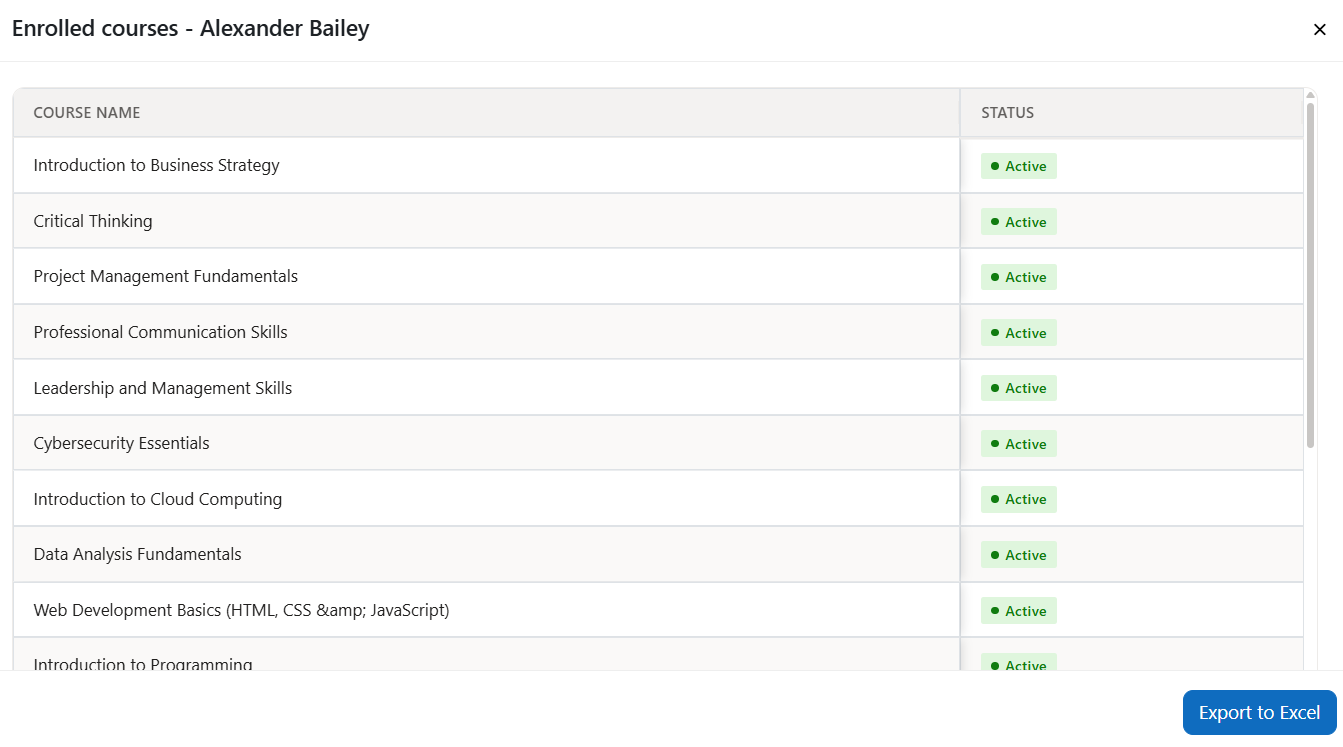
The Enrolled Courses field shows the courses in which each user is enrolled.
Clicking the enrolled courses information opens a modal window displaying the course names together with the user's enrollment status in each course, such as active or suspended.
Users Table Customization
You can customize the Users table through the Report Preferences.
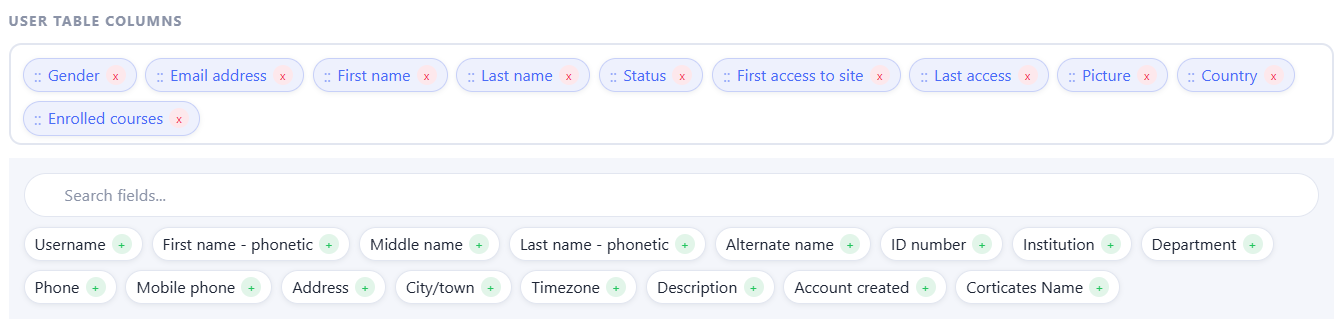
This allows you to:
- Choose which columns are displayed
- Hide fields that are not required
- Show previously hidden fields
- Change the order in which columns appear
If custom user profile fields have been created in Moodle, they can also be made available for reporting and visualization.
Available User Fields
The following fields can be displayed in the Users table:
- Email address
- First name
- Last name
- Site status – active or suspended
- First access to the site
- Last access to the site
- User picture
- Enrolled courses
- Username
- First name – phonetic
- Middle name
- Last name – phonetic
- Alternate name
- ID number
- Institution
- Department
- Phone
- Mobile phone
- Address
- Country
- City/town
- Timezone
- Description
- Account created
- Custom user profile fields, if available
User Charts
The User Charts area provides a visual summary of users based on selected profile information.
By default, user distribution can be presented by country. Custom user dropdown profile fields can also be used to create additional charts and summary tables.
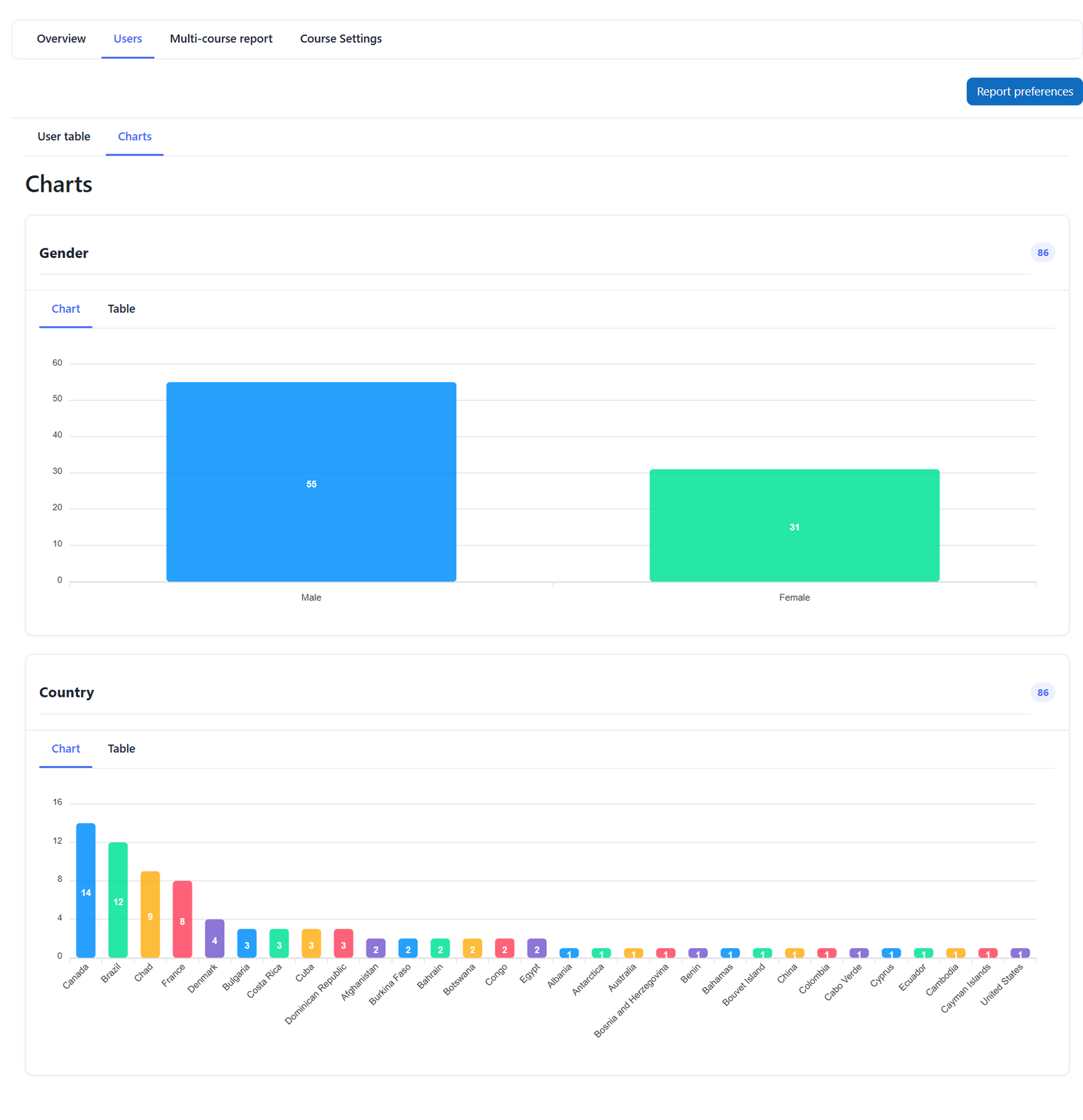
For example, if your site includes a custom profile field for organization, profession, gender, program, or another characteristic, the distribution of users according to that field can be displayed visually.
Each chart is accompanied by a table showing the corresponding values and number of users.
Chart Settings
The chart settings allow you to customize how user information is presented.

For Country and supported custom dropdown user profile fields, you can:
- Display the information as a chart and table
- Choose the chart type
- Change the order of charts on the page
- Show or hide individual charts
Available Chart Types
Charts can be displayed as:
- Pie chart
- Doughnut chart
- Bar chart
These settings allow administrators to configure the Users section according to the reporting needs of their Moodle site and focus on the user characteristics most relevant to them.
Was this page helpful?