Export Data
The Export feature allows users to export report data as an Excel file in XLSX format. This makes it easy to download course reporting data, review it offline, share it with others, or use it for further analysis.
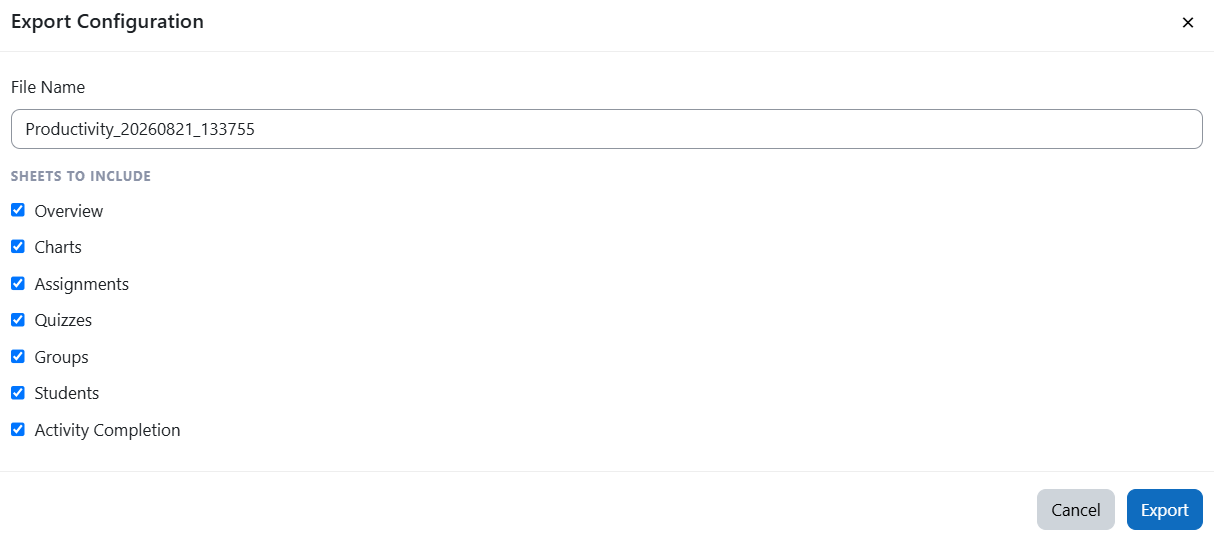
File Name
When exporting the report, you can enter a custom file name.
By default, the exported file name will use the course name. You can keep the default name or change it before exporting the file.
Sheets to Include
The export feature allows you to choose which sheets to include in the Excel file. You can select one or more of the following sheets:
- Overview
- Charts
- Groups
- Students
- Activity completion
- Assignments
- Quizzes
This gives you control over what information is included in the exported report.
Activity Completion Export
The Activity Completion sheet includes student activity completion data for the selected course.
A key advantage of the Nice Learning Report is that it can export activity completion data for both active and suspended users. This is different from the standard Moodle activity completion report, where suspended users may not be included in the exported completion data.
Export Based on Selected Filters
The export feature respects the filters applied in the report. This means that if you apply filters before exporting, the exported Excel file will include only the data that matches those filters.
For example, if you filter by enrolled date, student status, country, group, or custom dropdown fields, the exported file will include only the filtered results.
Purpose
The Export feature helps administrators, teachers, and managers generate customized Excel reports based on their needs. It supports flexible reporting by allowing users to select the required sheets, customize the file name, and export data based on the filters already applied in the report.
Was this page helpful?