Instant Notification
The Instant Notifications feature allows you to create and immediately send a notification to selected course users through:
- Moodle notifications, delivered through the Moodle website and mobile app when mobile notifications are configured.
Create an Instant Notification
Click Create to open the notification workflow.
Select Recipients
The first step allows you to select the course users who should receive the notification.
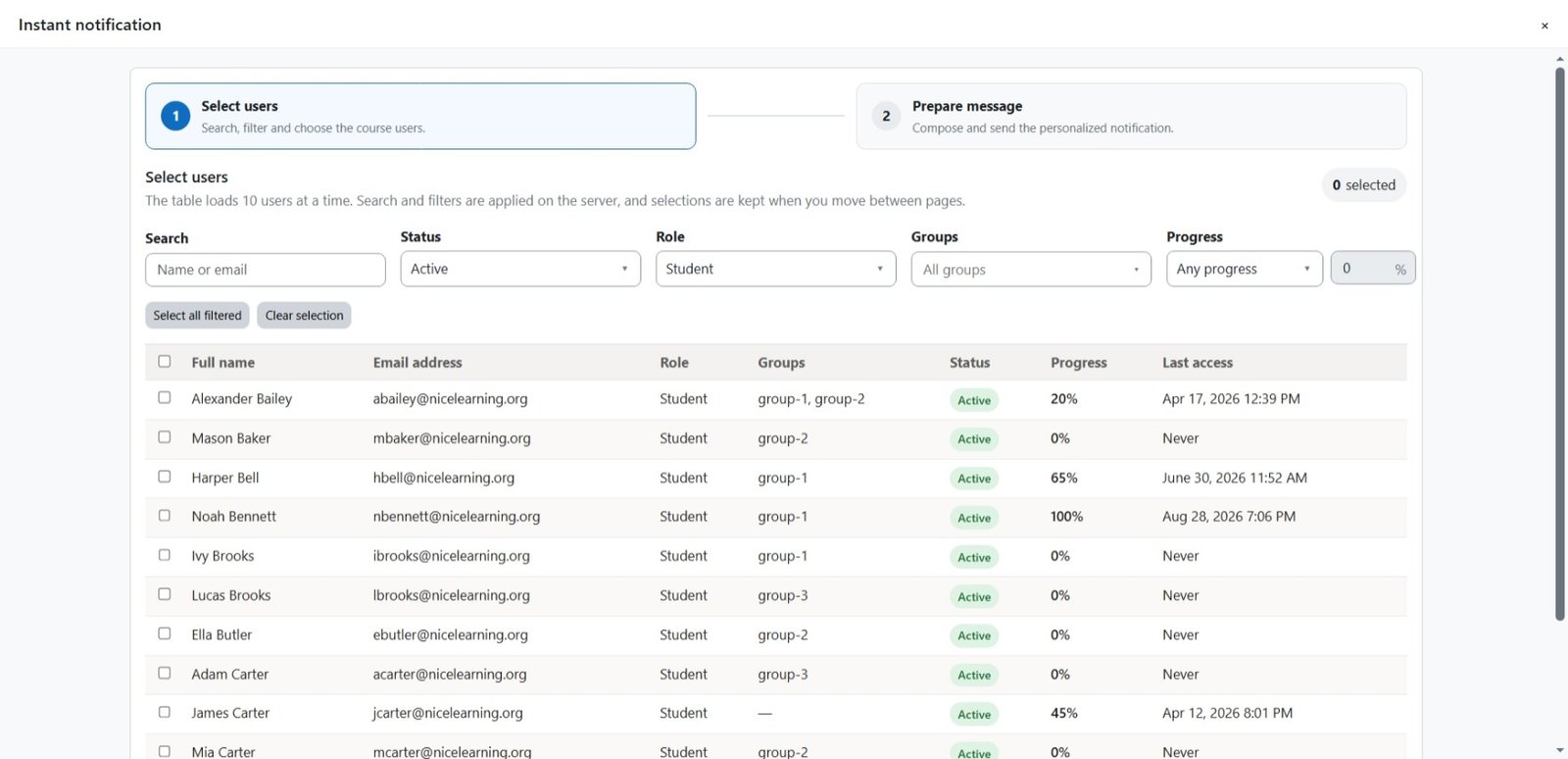
The following filters are available:
- Search: Find users by name or email address.
- Status: Filter users by their course enrolment status:
- Active
- Suspended
- Role: Filter users by their role:
- All roles
- Manager
- Teacher
- Non-editing teacher
- Student
- Group: Filter users by their course group.
- Progress: Filter users according to their course progress using one of the following conditions:
- Greater than
- Less than
- Equal to
- Greater than or equal to
- Less than or equal to
After selecting a progress condition, enter the required percentage.
By default, the Status filter is set to Active, and the Role filter is set to Student.
Note: Recipient selections are retained when you move between pages. For example, if you select users on the first page and then select additional users on another page, the users selected on the first page will remain selected.
After selecting the recipients, click Prepare Message.
Prepare the Message
Start with a Template
You can select a predefined message template from the Start with a template section.

You can create a new template directly from this page or manage templates by navigating to:
Site administration → Plugins → Local plugins → Nice notification
Delivery Channels
Select one or both of the following delivery channels:
- Email: Sends the notification to recipients by email.
- Moodle notification: Sends the notification through the Moodle website and mobile app, when configured.

Message Details
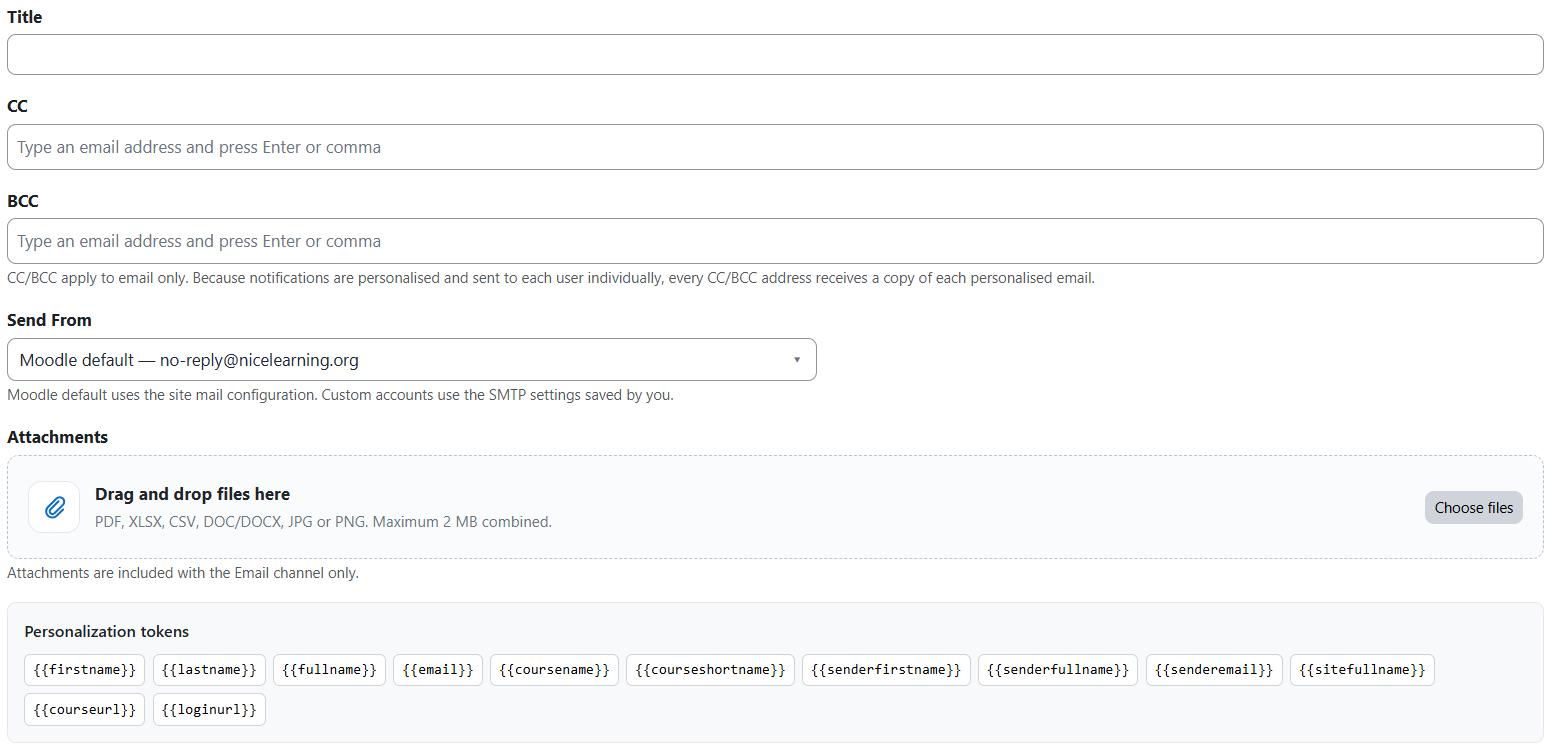
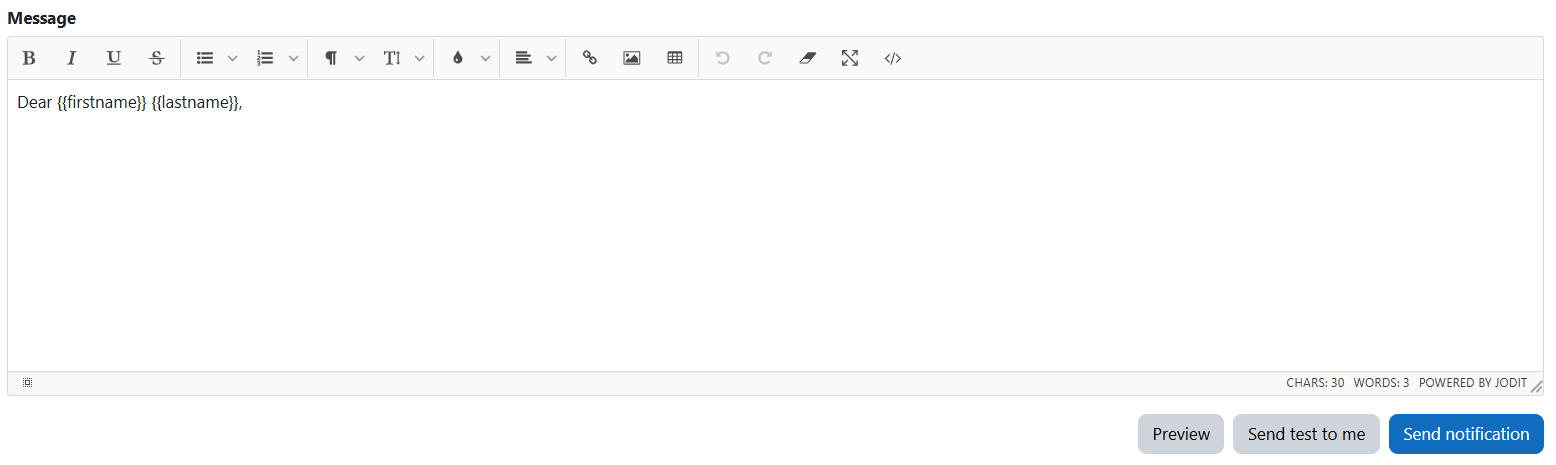
Complete the following fields:
- Title: Enter the notification title.
- CC: Add email addresses that should receive a copy of the message.
- BCC: Add email addresses that should receive a hidden copy of the message.
- Send From: Select the email address from which the notification will be sent. By default, the site’s Moodle email address is used.
- Attachments: Add files to the email notification, if required.
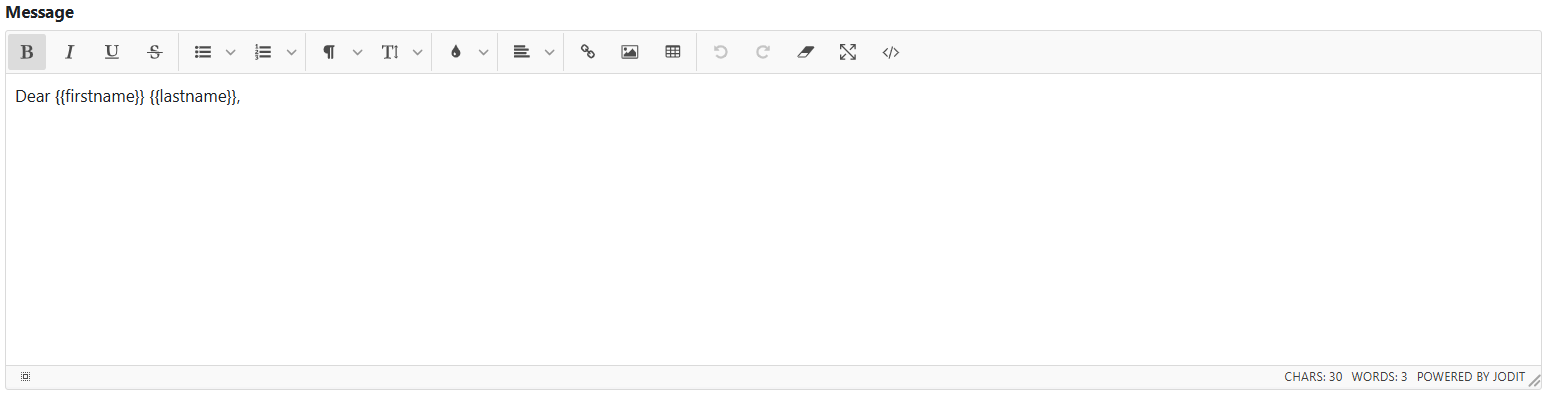
- Message: Create and format the notification using the rich-text editor.
Note: The CC, BCC, Send From, and Attachments options apply only when the Email delivery channel is enabled.
Additional sender email addresses can be created and managed by navigating to:
Site administration → Plugins → Local plugins → Nice notification
Attachments

The following file types are supported:
- XLSX
- CSV
- DOC
- DOCX
- JPG
- PNG
The maximum combined size of all attachments is 2 MB. Attachments are delivered by email only.
Personalization Tokens
Personalization tokens allow you to create dynamic messages based on recipient, sender, course, and site information.

The following tokens are available:
firstnamelastnamefullnameemailcoursenamecourseshortnamesenderfirstnamesenderfullnamesenderemailsitefullnamecourseurlloginurl
When the notification is sent, each token is automatically replaced with the corresponding information.
Use the rich-text editor to write and format your message. You can insert personalization tokens, tables, images, links, and other formatted content.
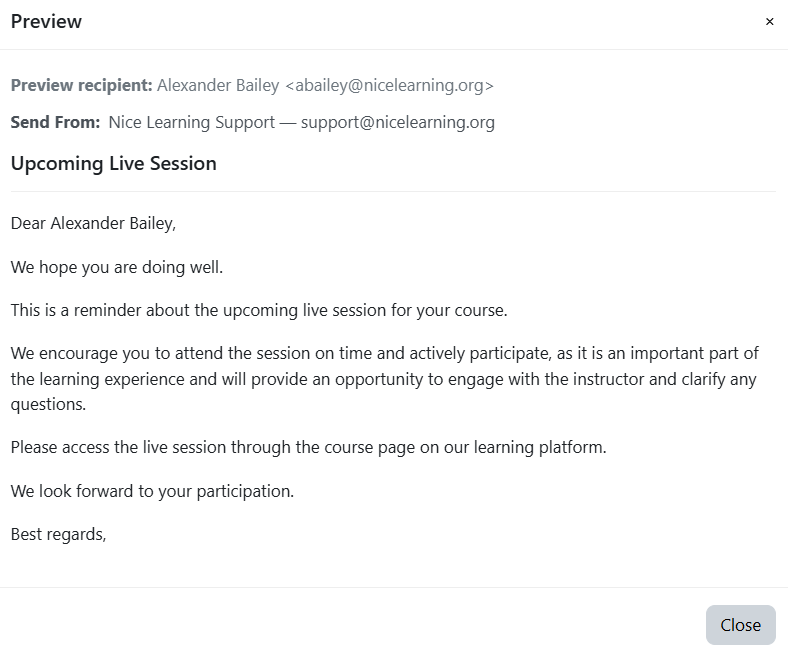
Preview
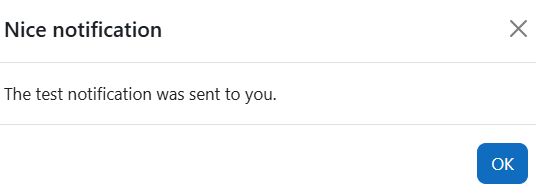
Send Test to Me
Send the Notification
Click Send Notification after preparing and reviewing the message.
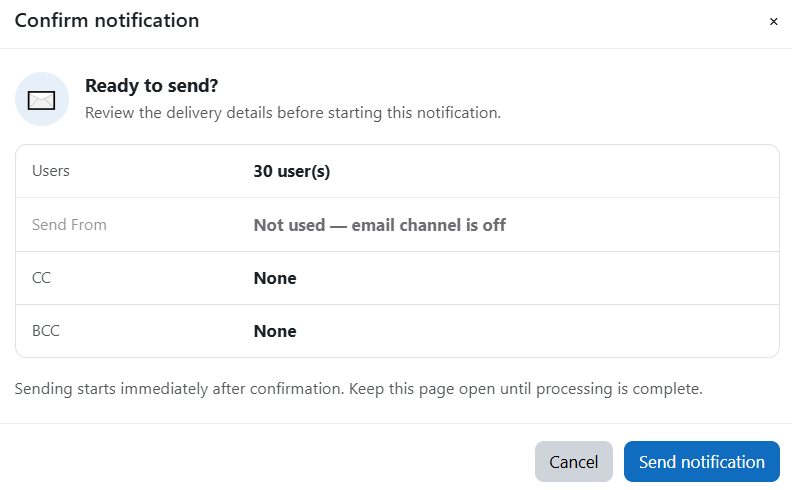
A confirmation window will display information such as:
- Total number of recipients
- Send-from email address
- Enabled delivery channels
If the Email channel is not selected, the confirmation window will show that the Email channel is off.
Review the information and click Send Notification to confirm.
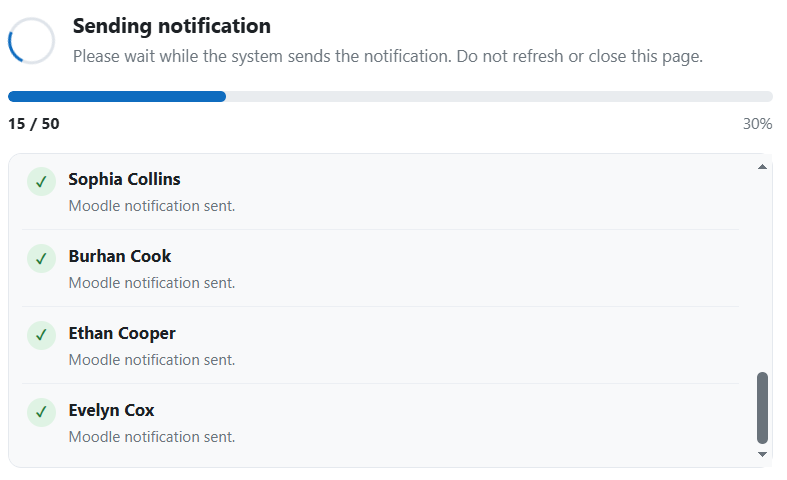
View Delivery Details
After the notification has been sent, click View Delivery to review its delivery information.
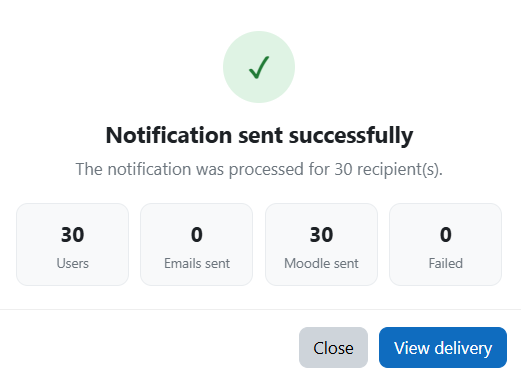
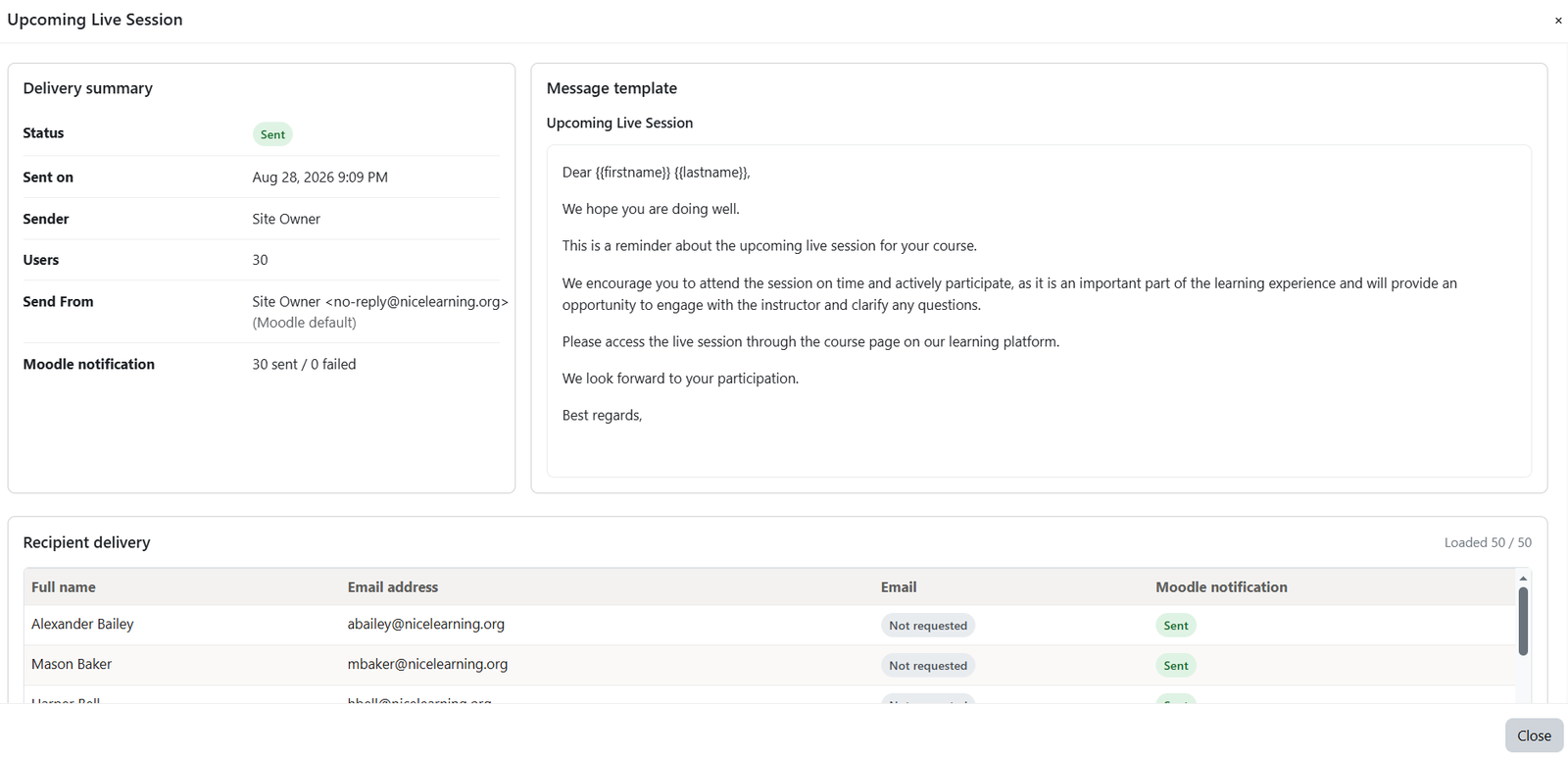
The delivery details include:
- Delivery status
- Date and time sent
- Sender
- Number of recipients
- Send-from email address
- Delivery channels used
- Message content
- Individual recipient delivery results
The Recipient Delivery section lists the users who received the notification and shows the delivery result for each recipient.
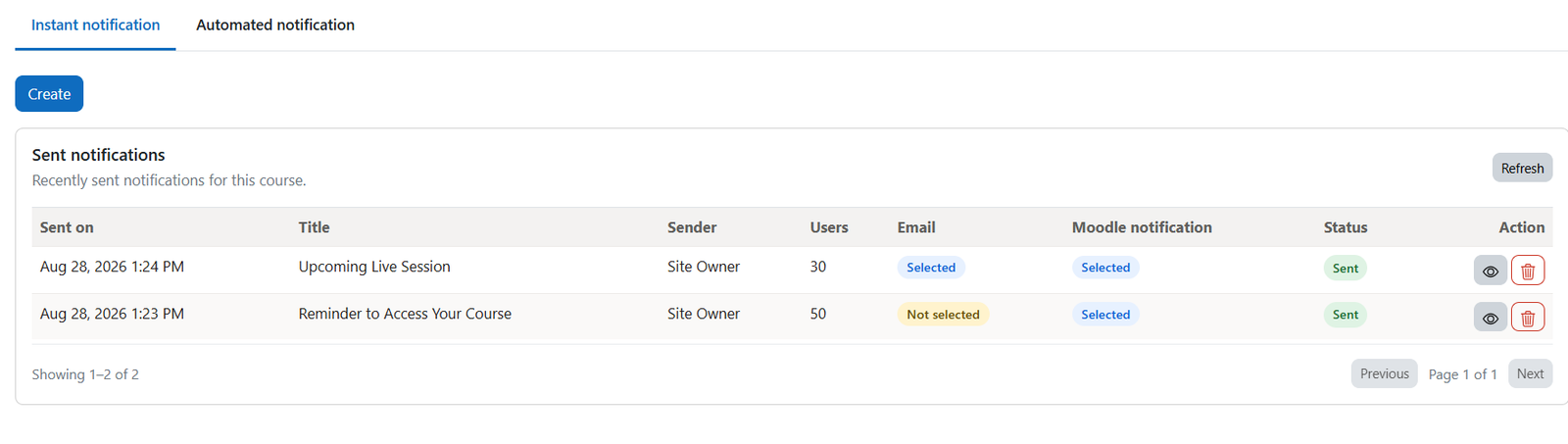
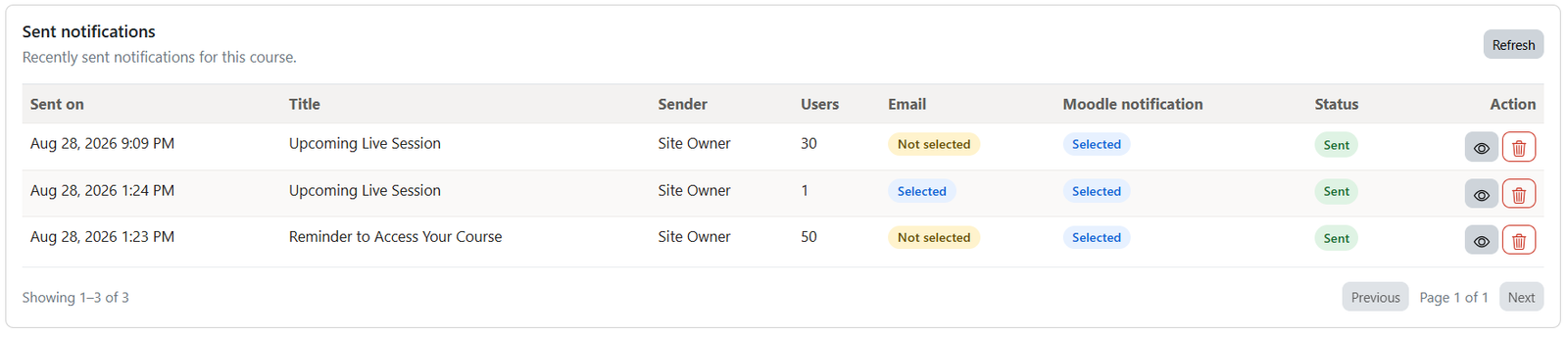
Sent notifications
Recently sent notifications for this course. Where you can view the delivery details or delete the campaign.
Was this page helpful?