Course Format
Nice Learning Course Format provides a modern, structured learning experience for Moodle courses. It transforms standard Moodle course sections into a connected learning path with clear progress indicators, collapsible sections, activity counts, completion guidance, and learner-friendly navigation.
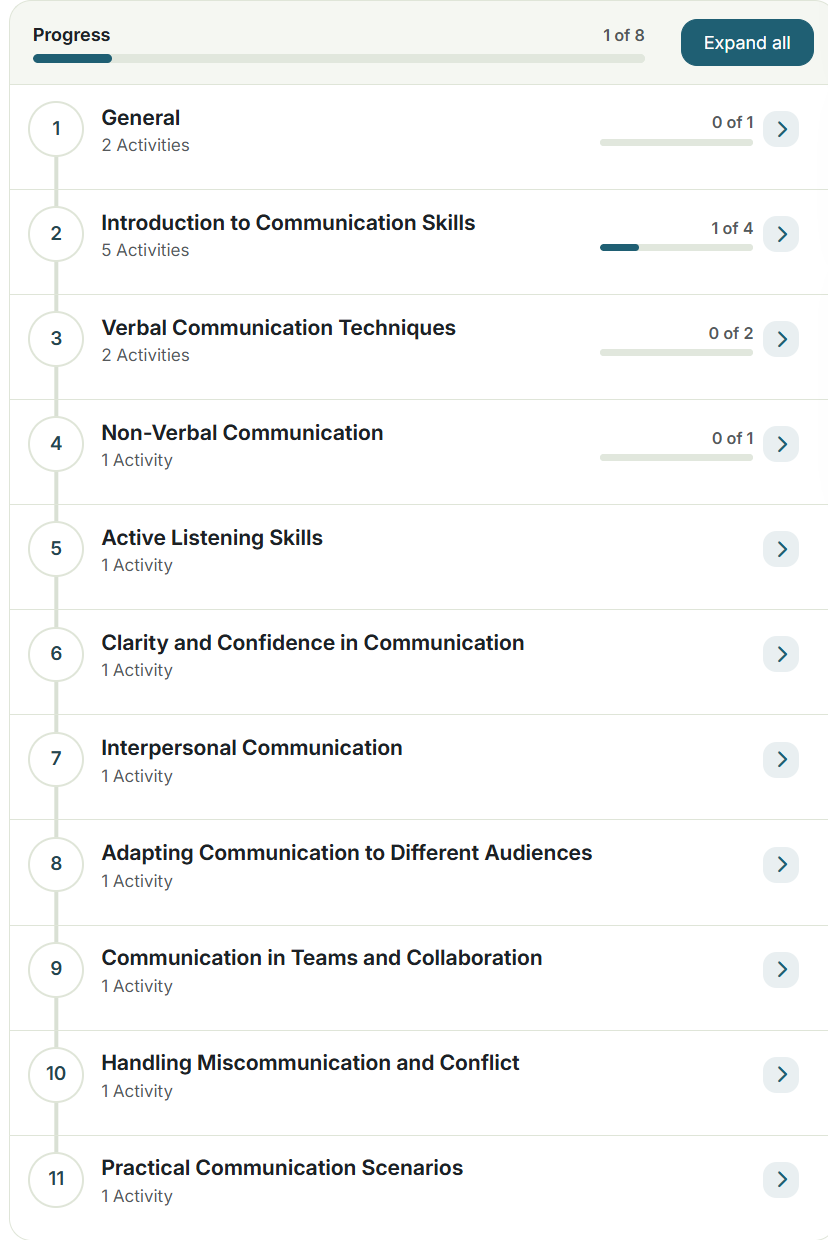
The format helps learners quickly understand:
Where they are in the course, what they need to complete, how much progress they have made, and which sections are complete.
Each section can display its activity count and completion progress directly in the course structure.
When all sections are displayed on one page, Nice Learning presents them as a connected learning path.
Depending on the selected marker style, sections can use:
- Sequential numbers
- Progress-based markers.
Installation
The Nice Learning Course Format is included with Nice Learning Theme starting from version 3.0.
Install from Nice Learning Theme
After installing or upgrading Nice Learning Theme 3.0 or later, navigate to:
Site administration → Appearance → Themes → Theme components
From the Theme Components page, check the status of Nice Learning Course Format.
If the course format is not yet installed, use the available installation option to install it directly from the theme package.
After installation, Moodle will ask you to complete the plugin upgrade process.
Manual Installation from the Theme Files
The Nice Learning Theme package also contains the course format files for manual installation.
Inside the theme package, locate the: format/ directory.
It contains two installation options:
- format_unzipped
- format_zipped
Option 1: Install Using format_unzipped
The format_unzipped directory contains the complete Nice Learning Course Format plugin folder.
Copy the included course-format folder directly to: /path/to/moodle/course/format/
After copying the folder, navigate to: Site administration → Notifications and complete the Moodle plugin installation or upgrade process.
Option 2: Install Using format_zipped
The format_zipped directory contains the Nice Learning Course Format as an installable ZIP package.
Navigate to: Site administration → Plugins → Install plugins
Moodle will validate the package and guide you through the installation process.
Complete the installation and any required database upgrade steps.
Overall Progress
A course progress panel appears above the learning path.

The progress is calculated using Moodle activity completion.
Activity Completion Guidance
Format can either retain Moodle's standard completion interface or display completion requirements as compact guidance badges directly above activities and resources.

This allows learners to understand what they need to do without opening an additional completion details menu.
Settings
It adds course-level settings while retaining Moodle's standard course format options.
1. Section Marker Style
Section marker style controls the visual marker displayed beside each section.
Numbered
This is the default option. Sections are displayed sequentially.

When all completion-tracked activities in a section are completed, the number is replaced by the completed state:

Progress Dots
Progress dots provide a more visual status-based learning path.

A section changes to In progress as soon as the learner completes at least one completion-tracked activity.

It becomes Completed when all completion-tracked activities in that section are complete.
2. Activity Completion Display
This setting determines how activity completion requirements are presented.
Moodle Standard
Uses Moodle's standard activity completion interface.
This includes Moodle's normal completion buttons, dropdowns, and completion details.
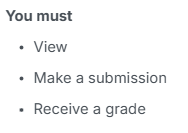
Guidance Badges
Displays activity completion requirements as compact status badges directly above the activity or resource.

Completed requirements appear in green.
Incomplete requirements use a neutral status indicator.
The badges are informational and are intentionally designed so that learners do not confuse automatic completion requirements with clickable checkboxes.
Manual completion remains interactive where Moodle requires the learner to manually mark an activity complete.
Visible Activities
Activity counts are based on what is visible to the current learner.
If an activity is hidden from a learner, it is not included in that learner's count.
Availability restrictions are also respected through Moodle's standard visibility system.
Remembering Section State
Nice Learning uses Moodle's native section-collapse behavior.
When a learner collapses or expands sections, Moodle can preserve the section state for that user and course.
This means a learner can leave a course and later return with their previous section arrangement retained.
Permissions
It does not introduce a separate permission model.
Standard Moodle course capabilities continue to control actions such as editing a course, editing section names, adding activities, hiding activities, moving sections, and managing completion settings.
Set as Default Course Format
Administrators can make Nice Learning Course Format the default format for newly created Moodle courses.
First ensure the plugin is enabled under:
Site administration → Plugins → Course formats → Manage course formats
Then navigate to:
Site administration → Courses → Course default settings
Find the Format setting.
Select:
Nice Learning Course Format
Save the changes.
New courses will now use Nice Learning Course Format by default.
Teacher Control
Unless Moodle capabilities are separately restricted, teachers with permission to update course settings can still change the course format for individual courses.
Was this page helpful?