Certificates
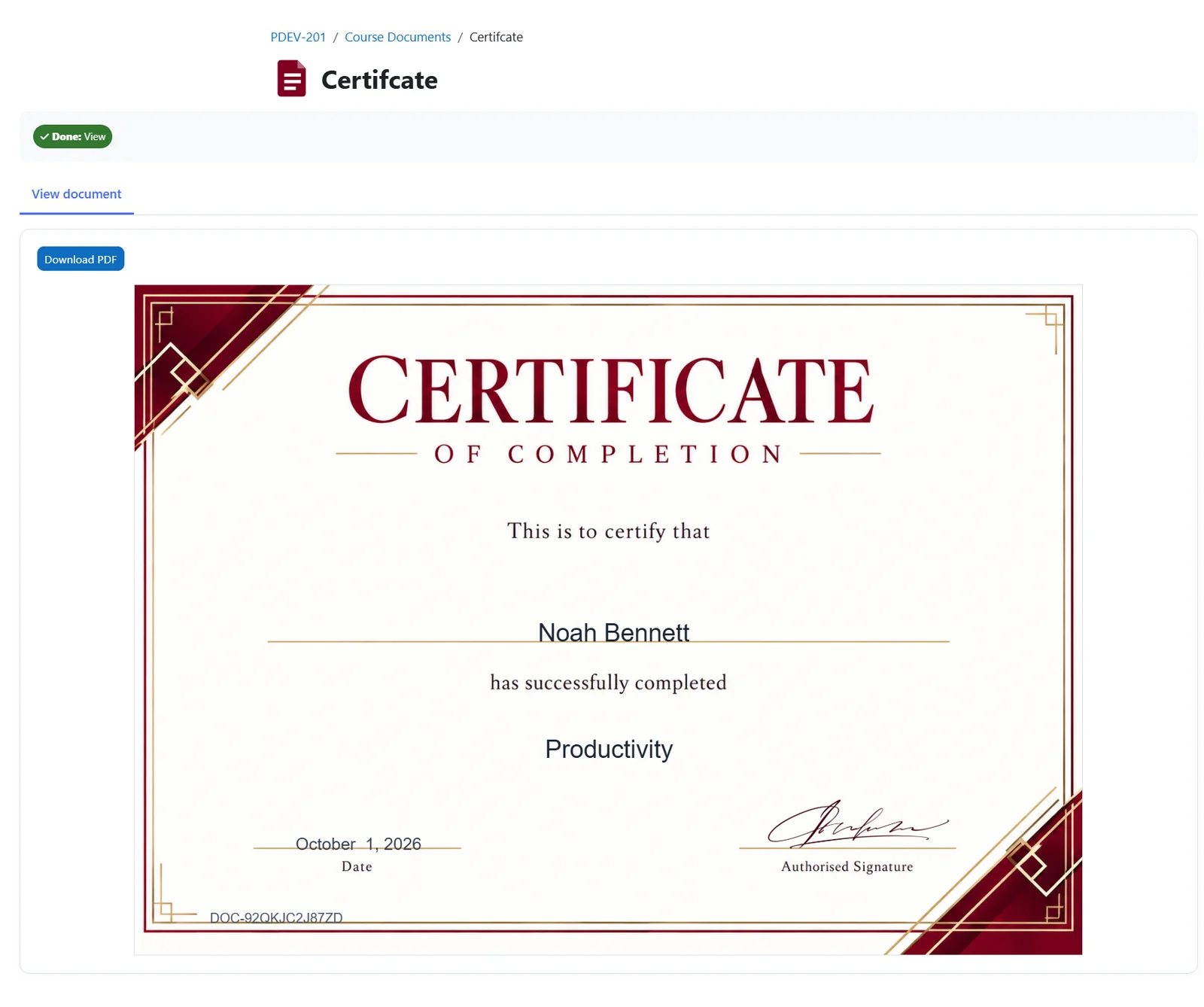
Recognise course completion with personalised names, course details and issue dates.
A4 landscape · 297 × 210 mmCreate certificates, transcripts, badges and documents that reflect your brand. Design visually, fill them with Moodle data, and manage every step from approval to PDF delivery.
Choose the dimensions, build your layout and let Moodle supply the personal details.
Recognise course completion with personalised names, course details and issue dates.
A4 landscape · 297 × 210 mmBring assessment grades and learner information together in a structured document.
A4 portrait · 210 × 297 mmCreate compact designs using profile fields, images, unique codes and QR links.
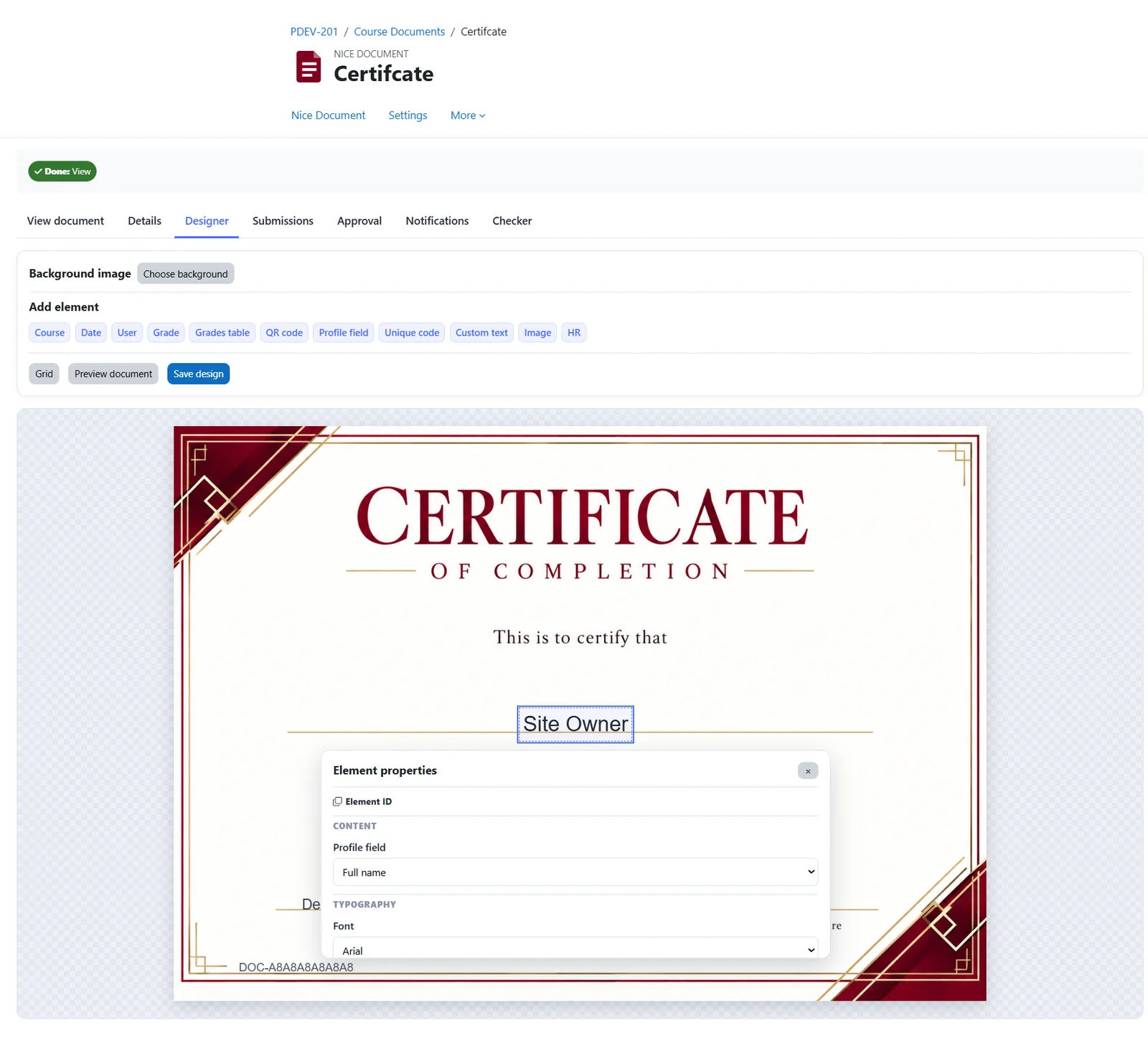
ID-1 landscape · 85.6 × 53.98 mmUpload a background, add elements and arrange them exactly where you want them. Preview the PDF before saving your design.
This is to certify that
Noah Bennetthas successfully completed
Productivity EssentialsTry the preview above. In Moodle, these values come from the learner’s profile and course.
Combine dynamic information and custom content in one reusable design.
Display the course name, short name or ID number.
Add issue, course, custom or expiry dates in your preferred format.
Display the grade from a selected assignment or quiz.
Build a transcript with selected assessments and custom columns.
Link to the course page or a custom URL.
Personalise documents with names and standard or custom profile fields.
Include the document code generated by your LMS.
Combine rich text with values from other elements.
Add your logo, signature or other artwork.
Separate content with a line in your chosen colour.
Copy an element ID and place it inside double curly braces, such as {{elementid}}, in the rich text editor. Combine fixed wording with personalised values.
Productivity programme
| Assessment | Mark | Maximum |
|---|---|---|
| Planning assignment | 24 | 30 |
| Time management quiz | 18 | 20 |
| Final project | 45 | 50 |
Add grades from assignments and quizzes within the same category as your document. Choose the assessments to include and organise the table to suit your programme.
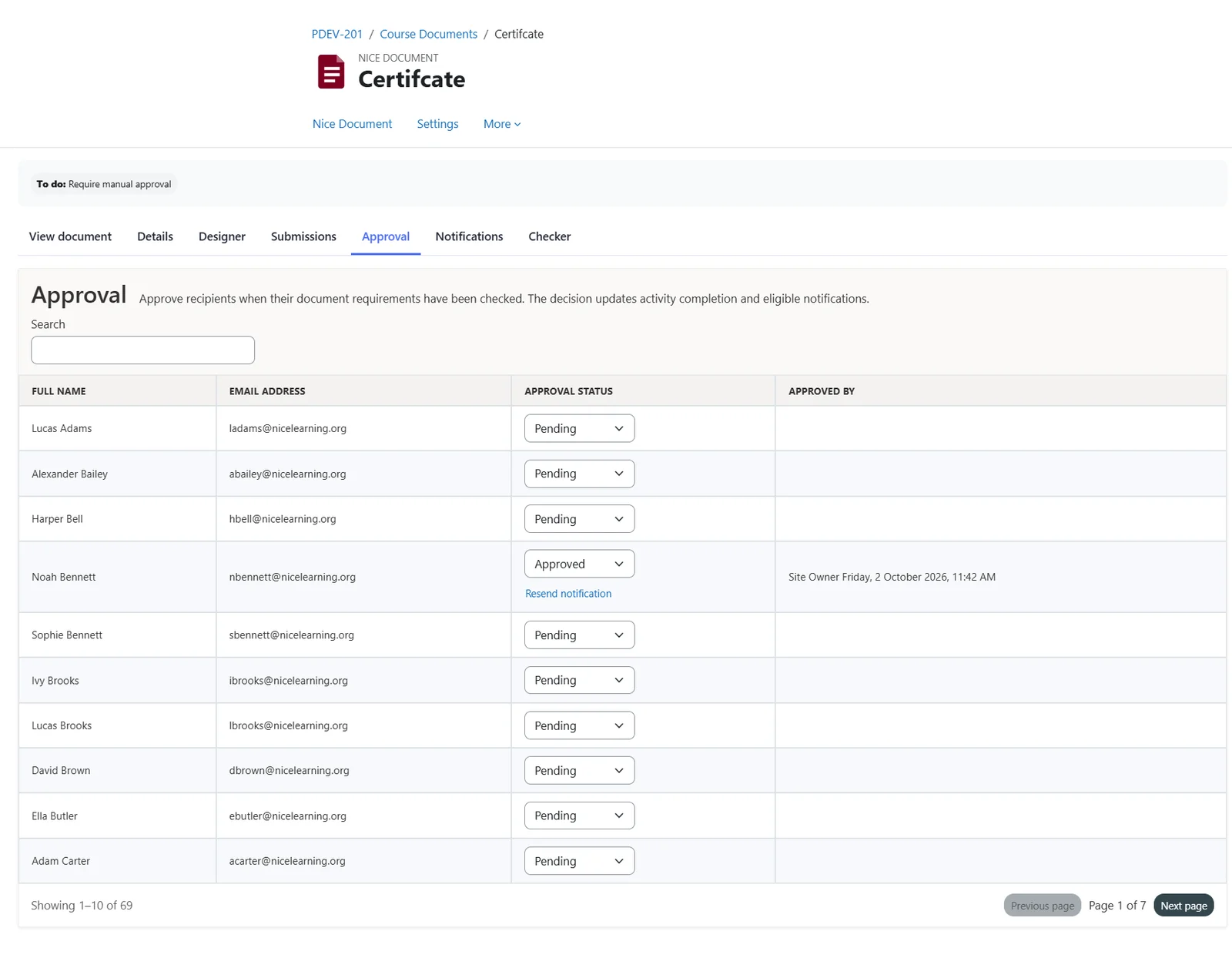
Enable manual approval when your process needs a review. Authorised staff can approve or decline documents, with decisions updating activity completion and applicable notifications.
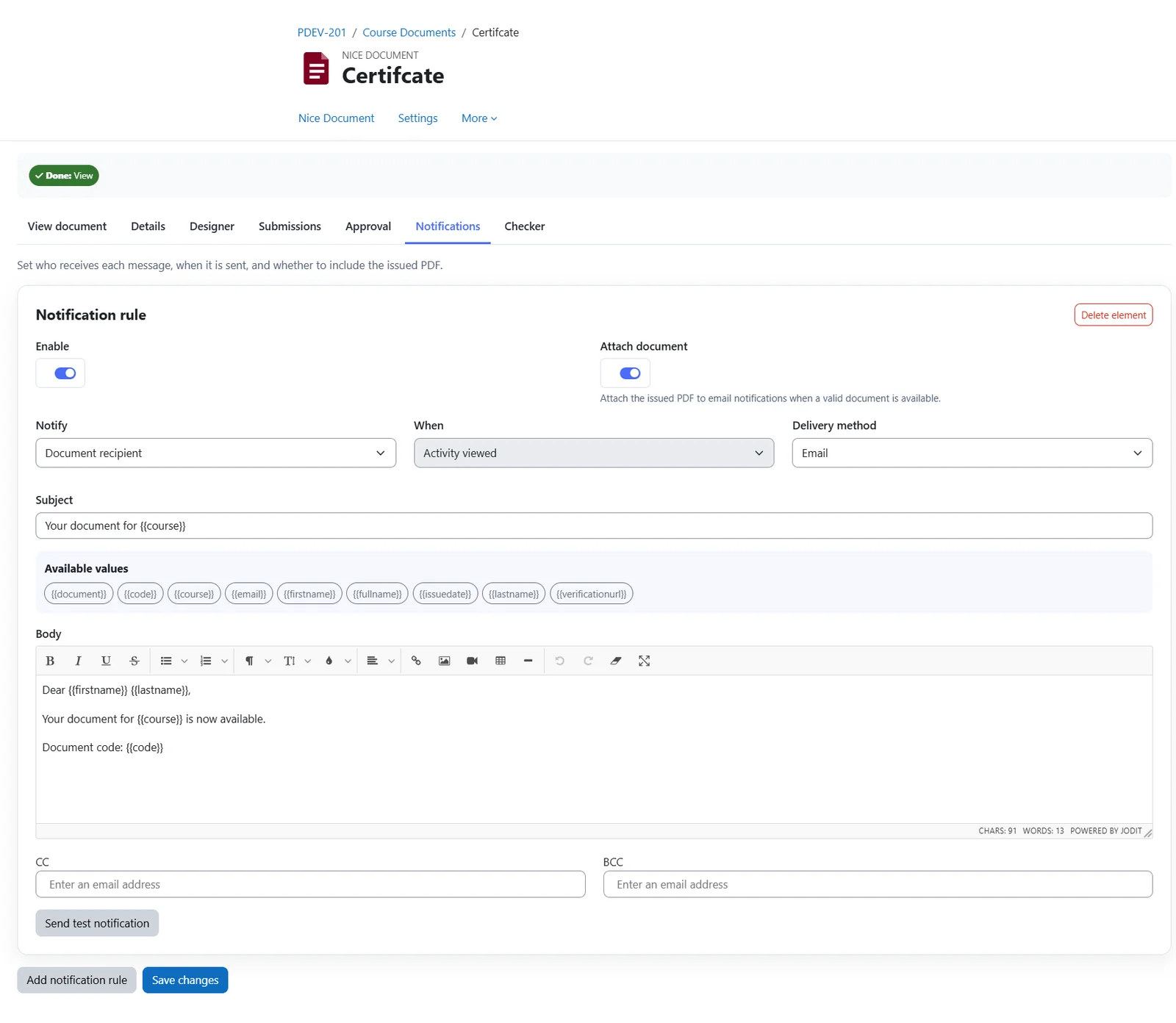
Dear {{firstname}},
Your document for {{course}} is now available.
Document code: {{code}}
Illustrative message. Configure recipients and delivery in Moodle.
Create separate rules for document recipients, administrators, teachers, non-editing teachers and managers.
For non-approval, configure email-only actions or combine email with course enrolment or site account suspension.
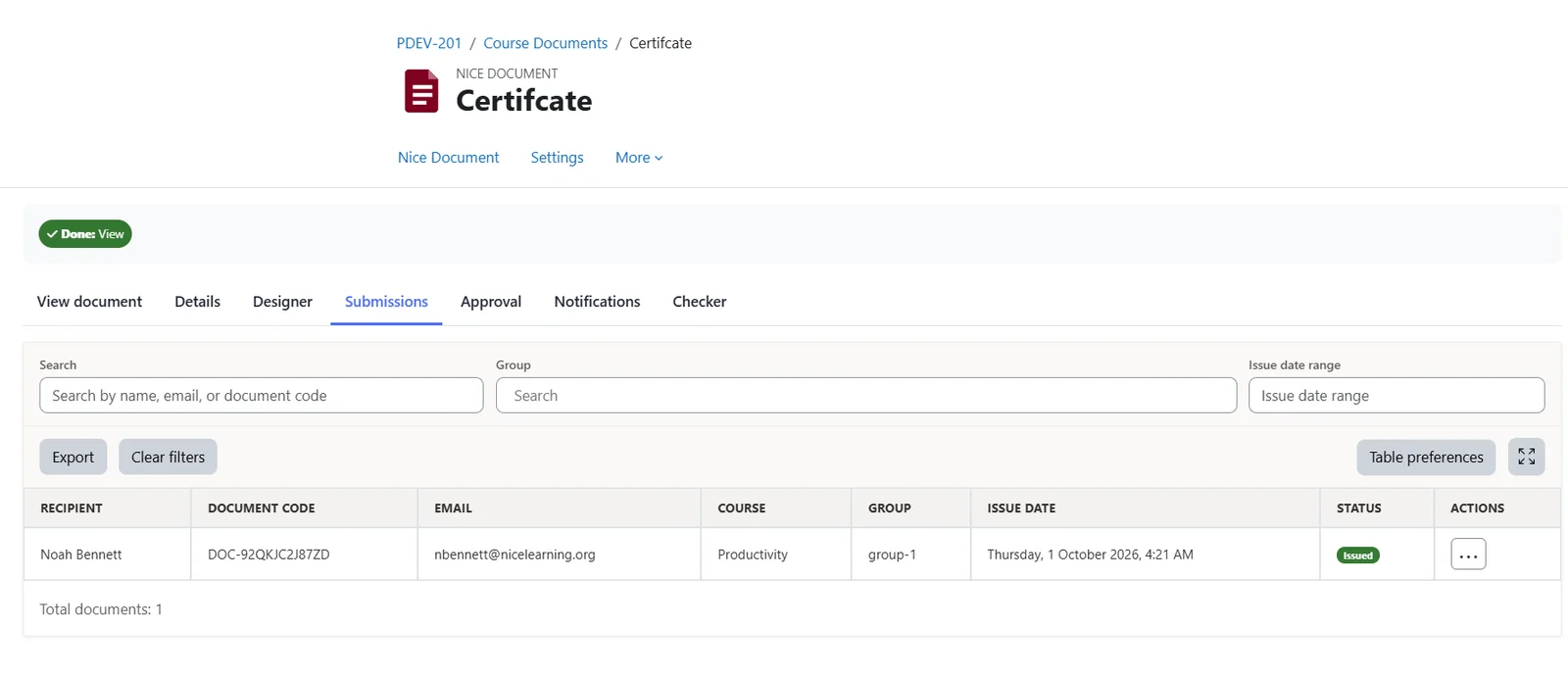
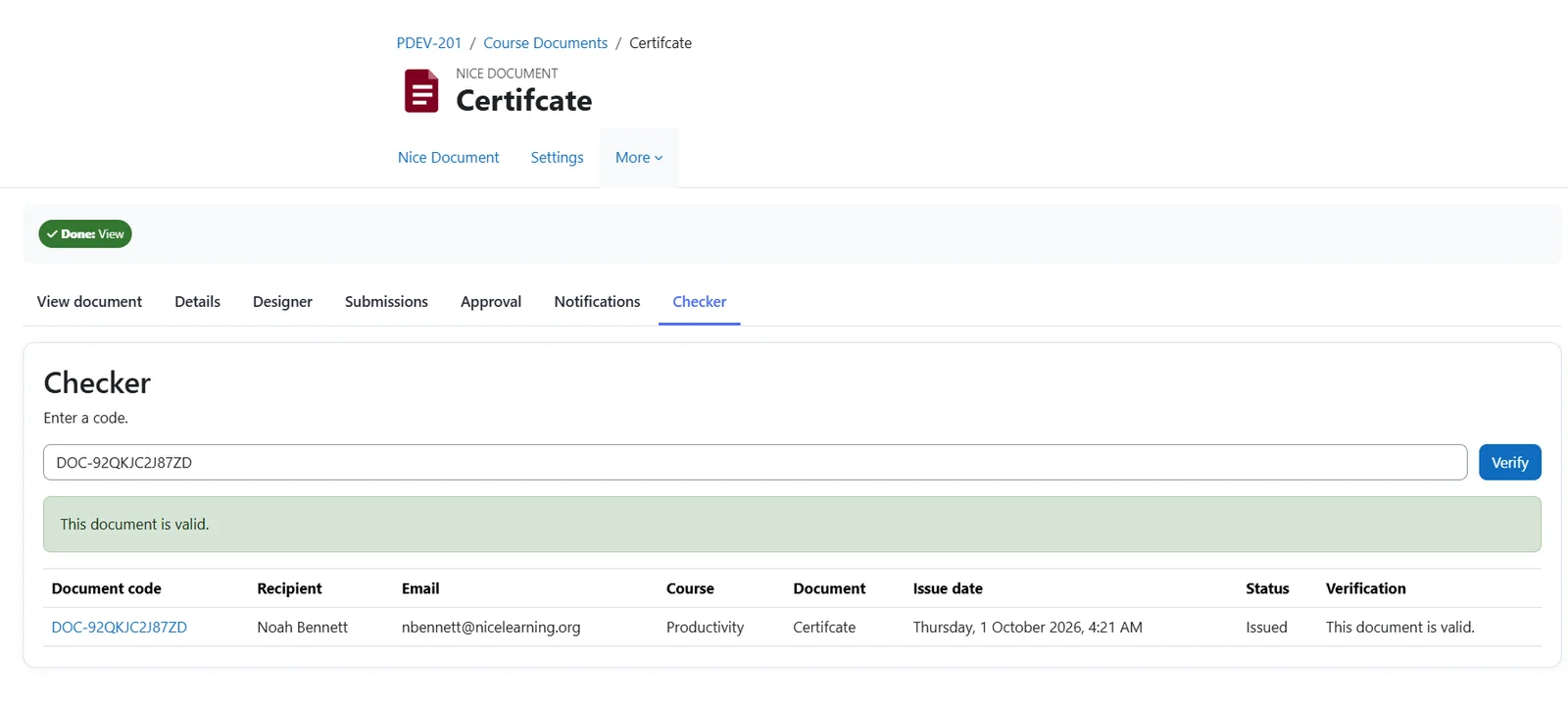
Keep issued records searchable and confirm validity through your LMS.
Search by recipient, email or code. Filter by groups and issue date, then export every matching record to Excel across all pages.
Set a prefix, structure, random length and character format. Use prefix, random, course ID, user ID and year tokens.
DOC-2026-0084Enter an issued code on the Checker page to confirm that the document is valid and was issued by your LMS.
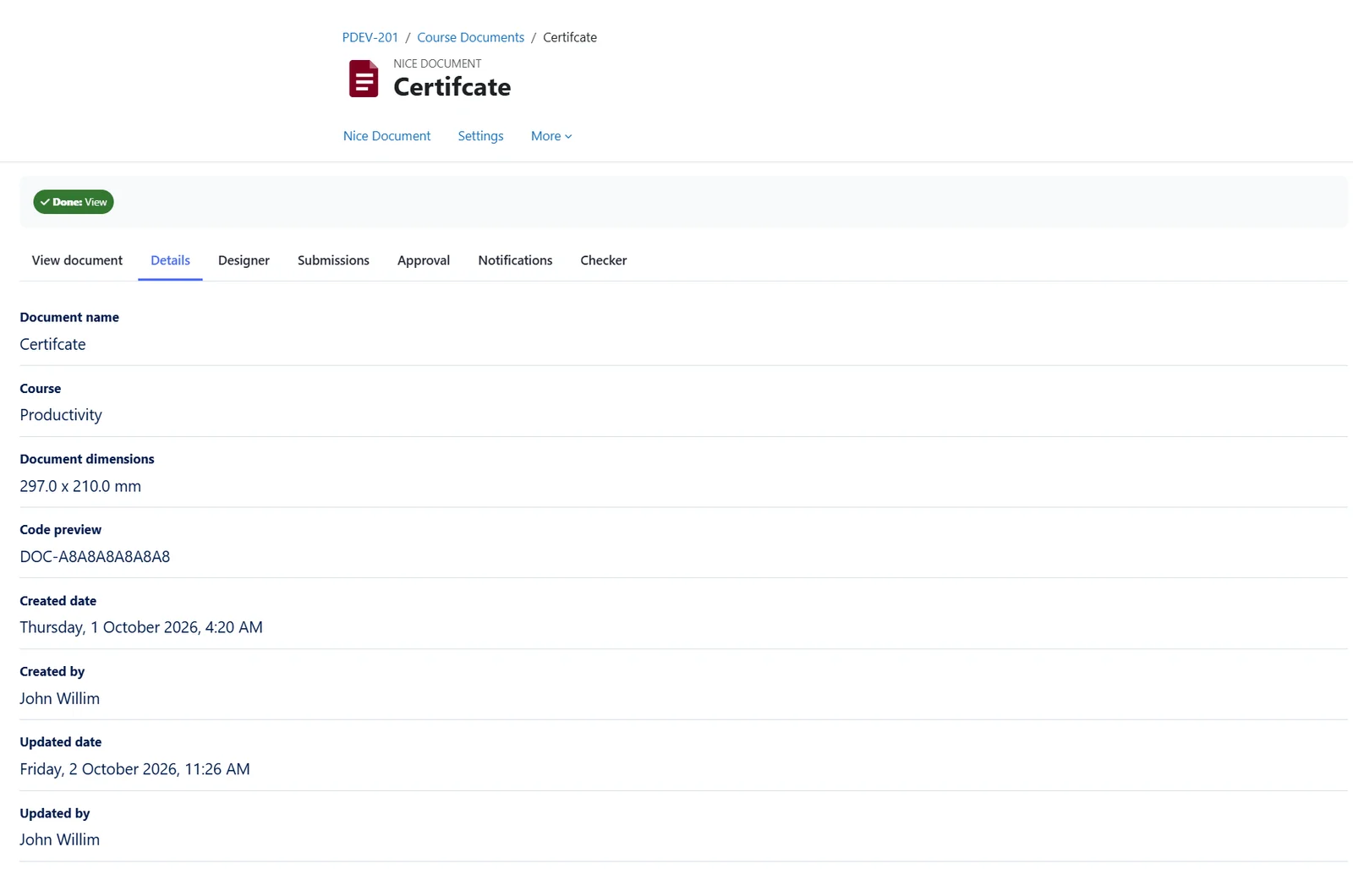
Authorised users can view the document and download a PDF. Staff can review the document’s name, course, dimensions, code preview and creation and update details.
Install modnicedocument.zip through Site administration → Plugins → Install plugins. Complete the database upgrade, then add Nice Document from a course’s activity chooser.
Yes. Upload a background image in the designer, then add dynamic elements, images and text over it.
Yes. Use the Date element’s expiry source and choose one, two or three years, or a custom expiry date.
Choose the course page or a custom page URL as the QR code target.
Design, personalise, approve and deliver — in one Moodle activity.